Change the OCPP operator
The OCPP operator is set for the site. You can change it in the Synleap app or set it in the Synleap web console.
Before you switch
Changing the operator disconnects the site from its current operator. Services provided by that operator may stop. Check with the new operator before making the change.
Change the operator in the app
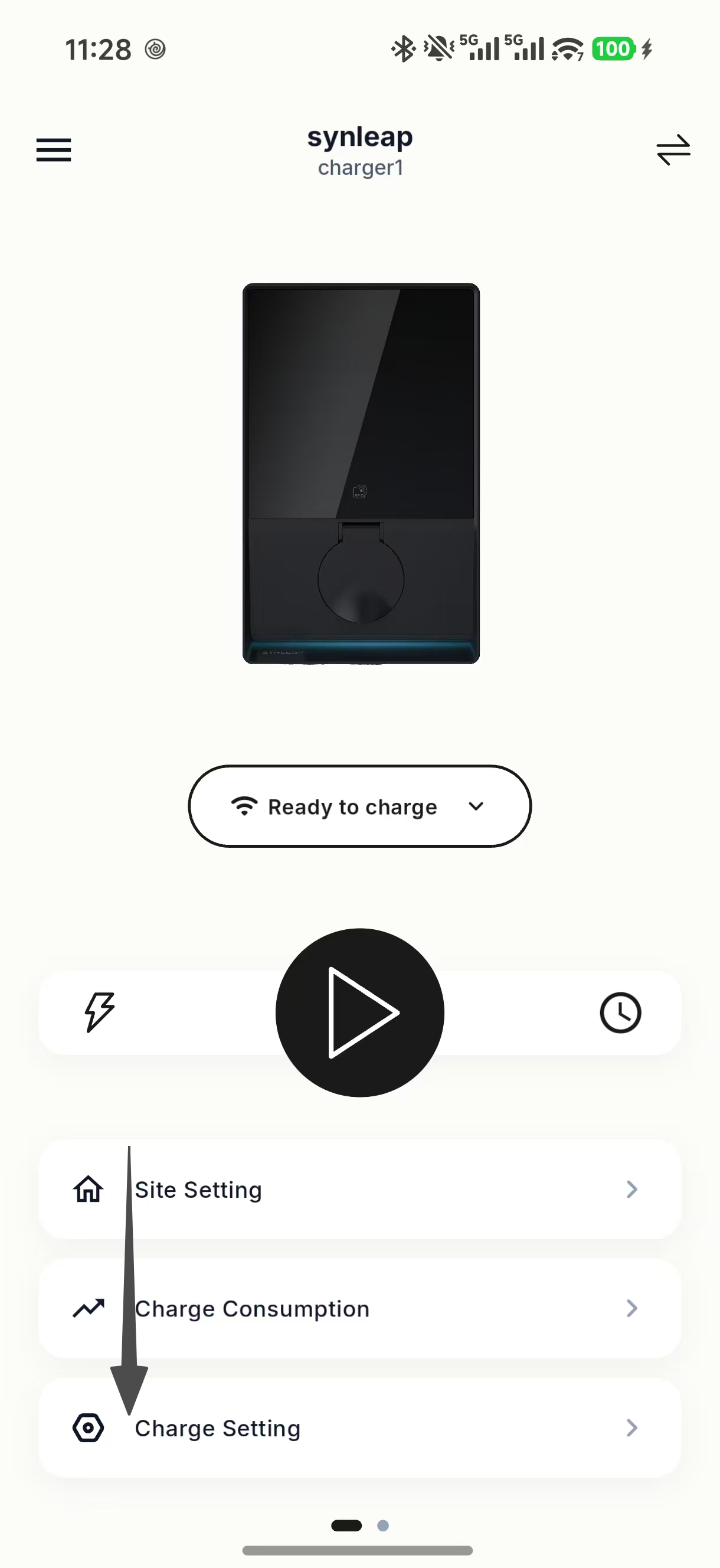
Open a charger at the site in the Synleap app and tap Charge Setting.
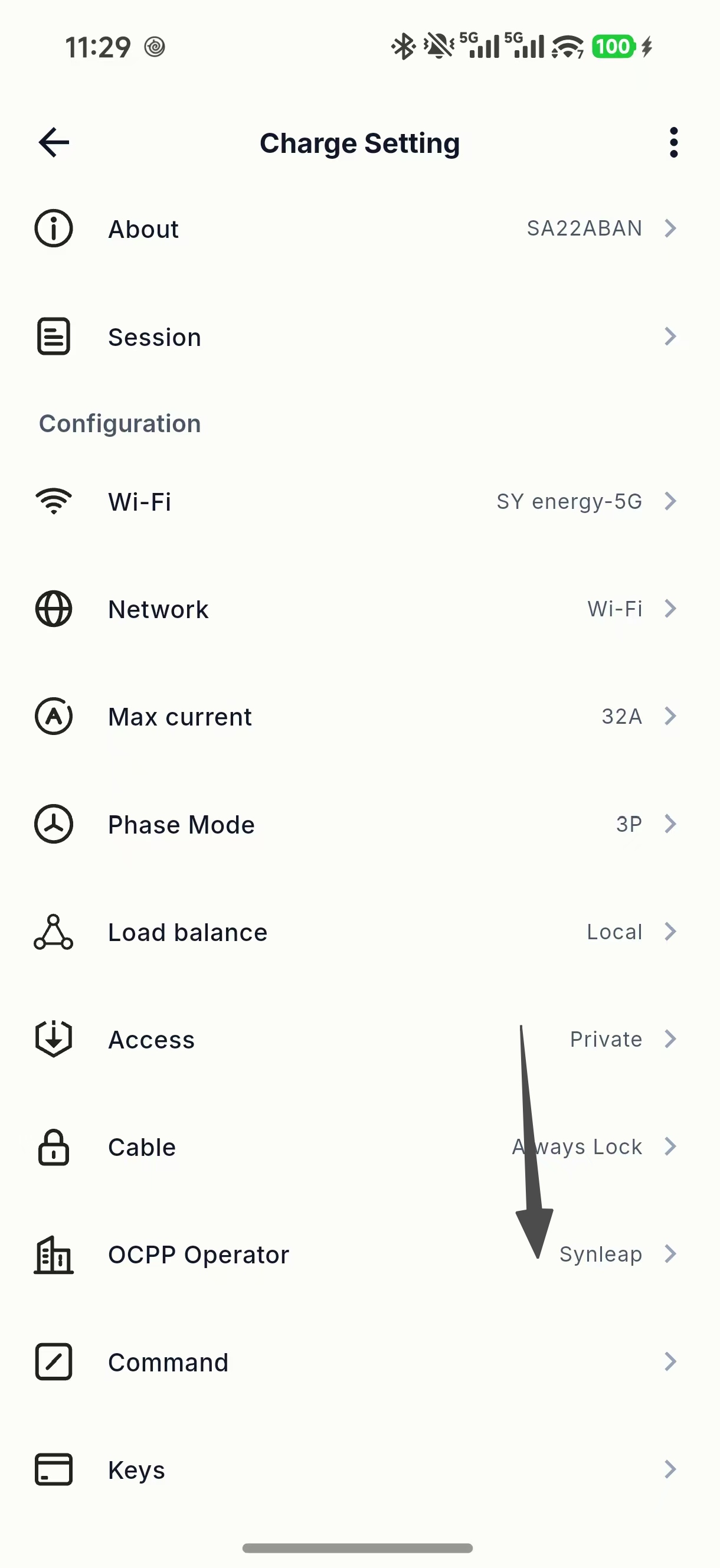
Tap OCPP Operator. The app will take you to the site's operator setting. If a message appears, tap Site Settings to continue.
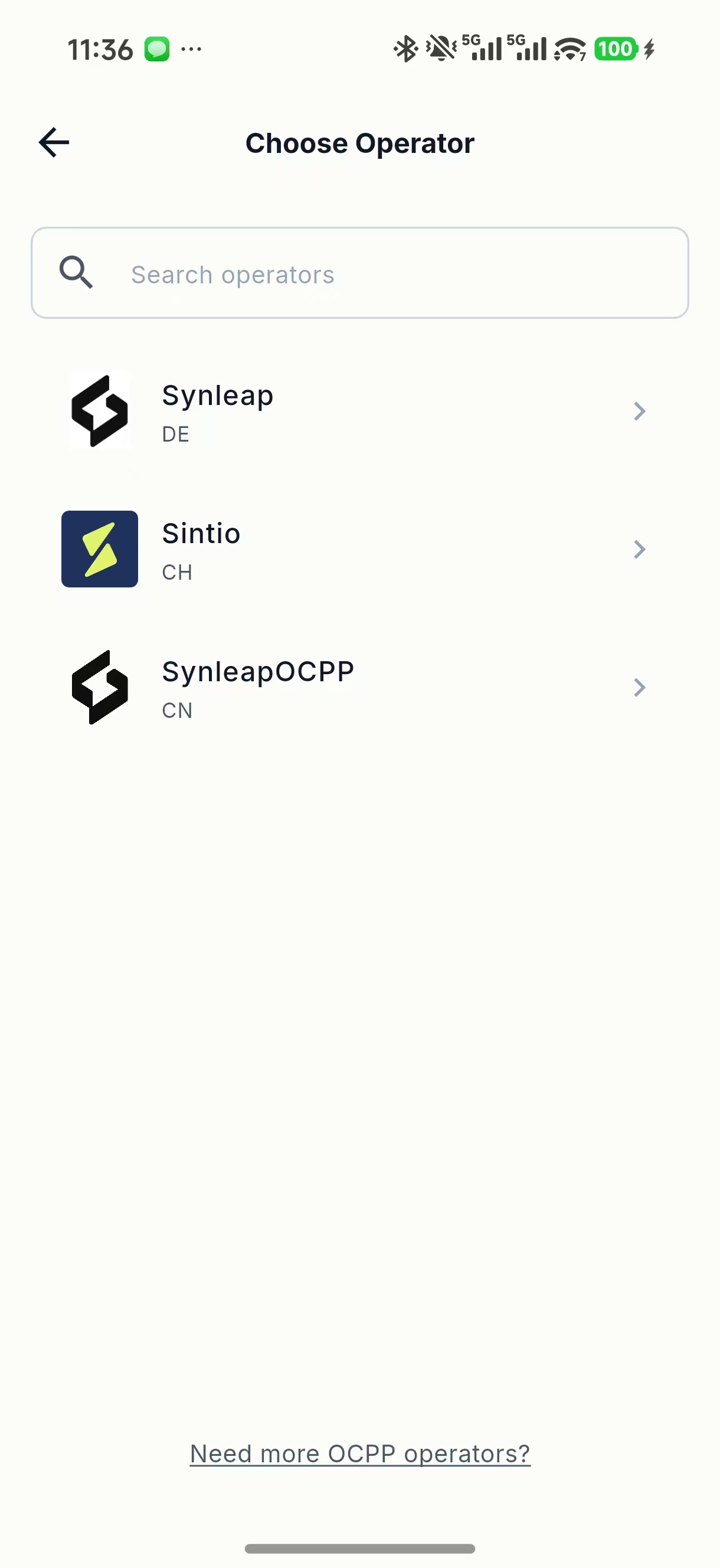
On Choose Operator, search for the operator if needed, then tap its name. If you are changing from an existing operator, read the warning and tap Understand to continue.
Back on Site Settings, tap Save. Complete the Site Sync steps that appear so the change is sent to the site and its chargers.
Return to the charger's Charge Setting page and check the name beside OCPP Operator.
If the operator is missing from the list, tap Need more OCPP operators? at the bottom of the selection page to contact Synleap support.
Set the operator in the web console
You can select an OCPP operator when creating a site, or change the operator of an existing site.
When creating a site
In the Synleap web console, open Sites → Sites and click Create Site.
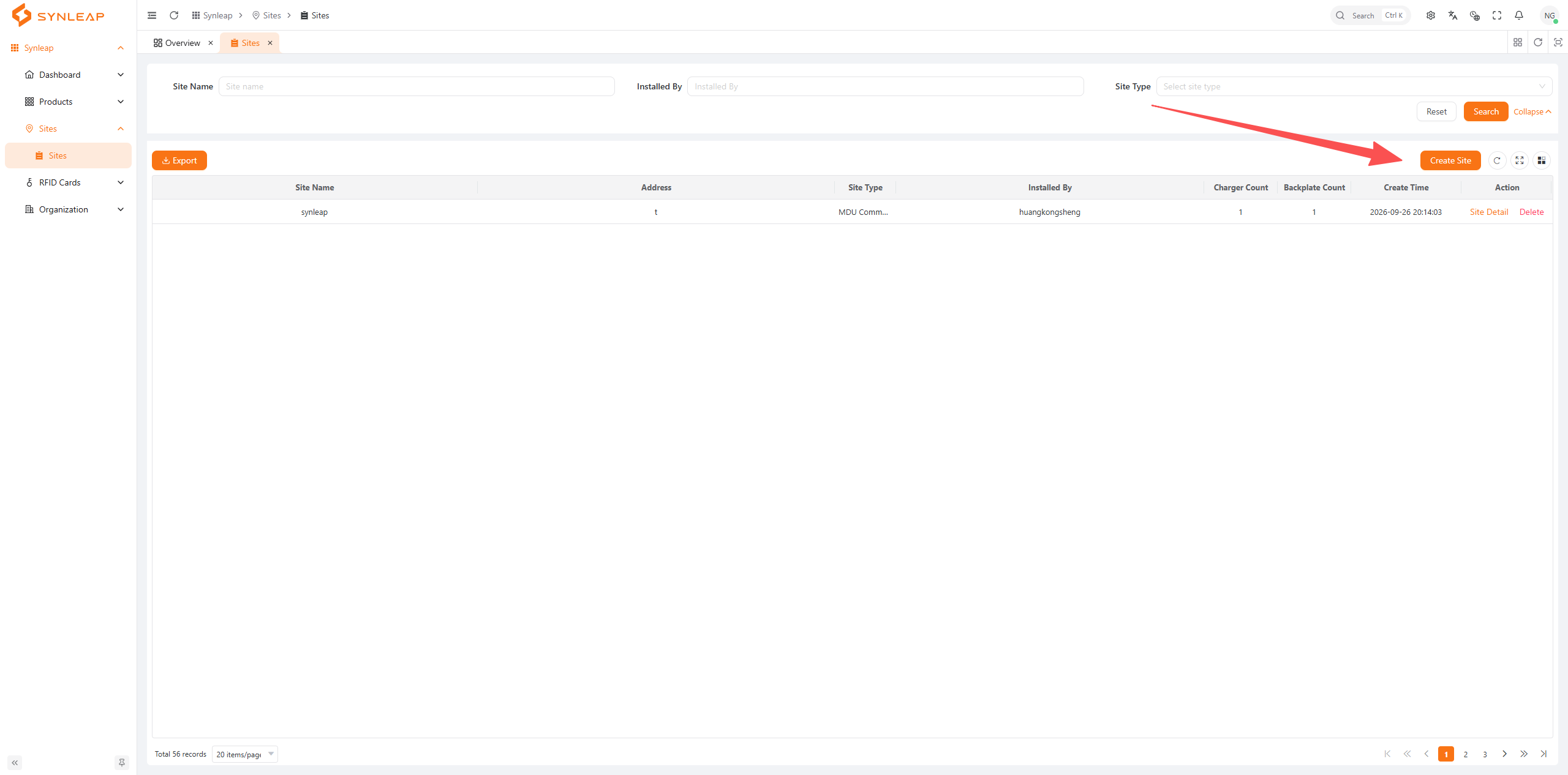
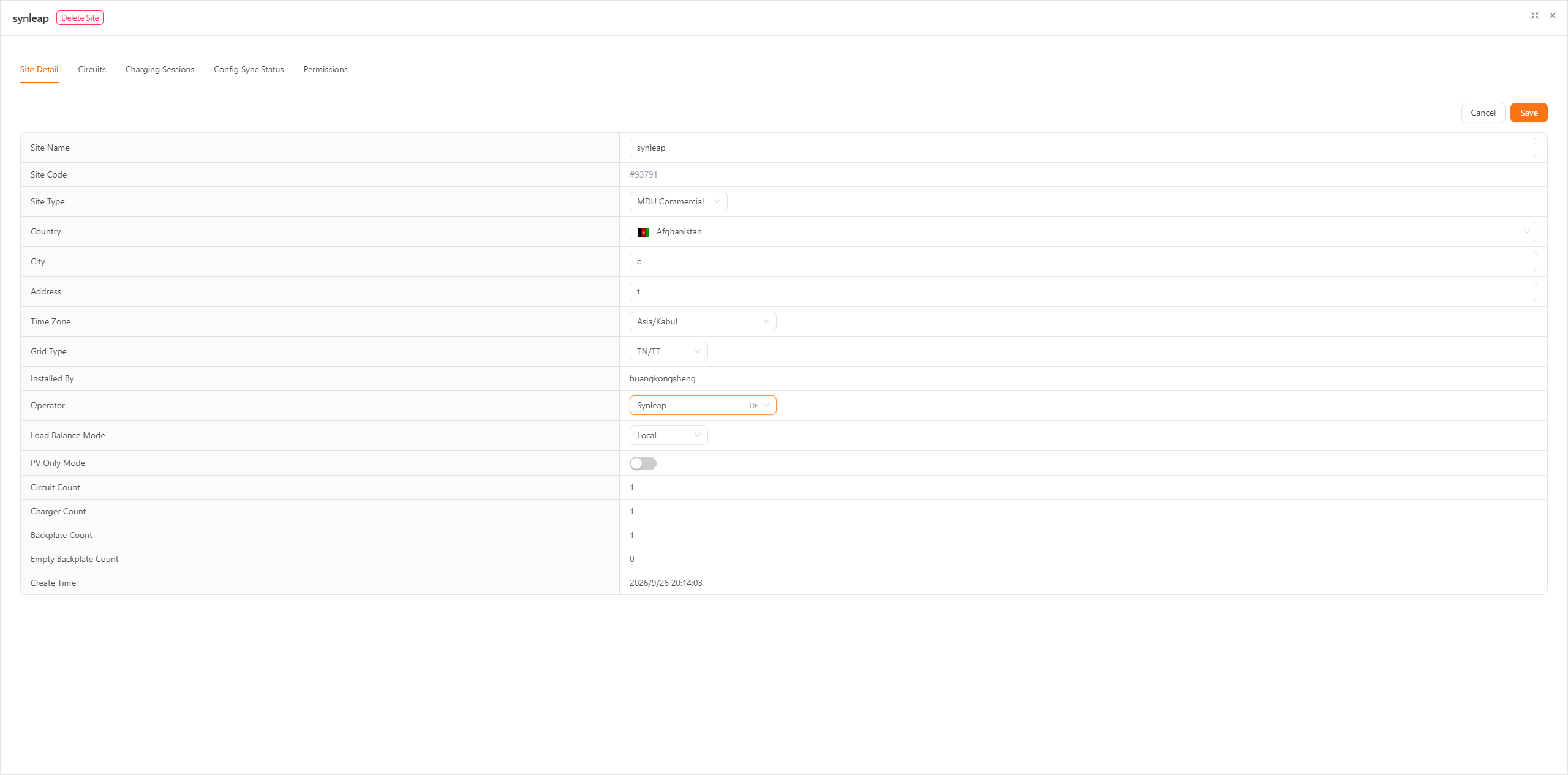
Enter the site details and select MDU Commercial as the site type. Open Operator and choose the operator you want to use.
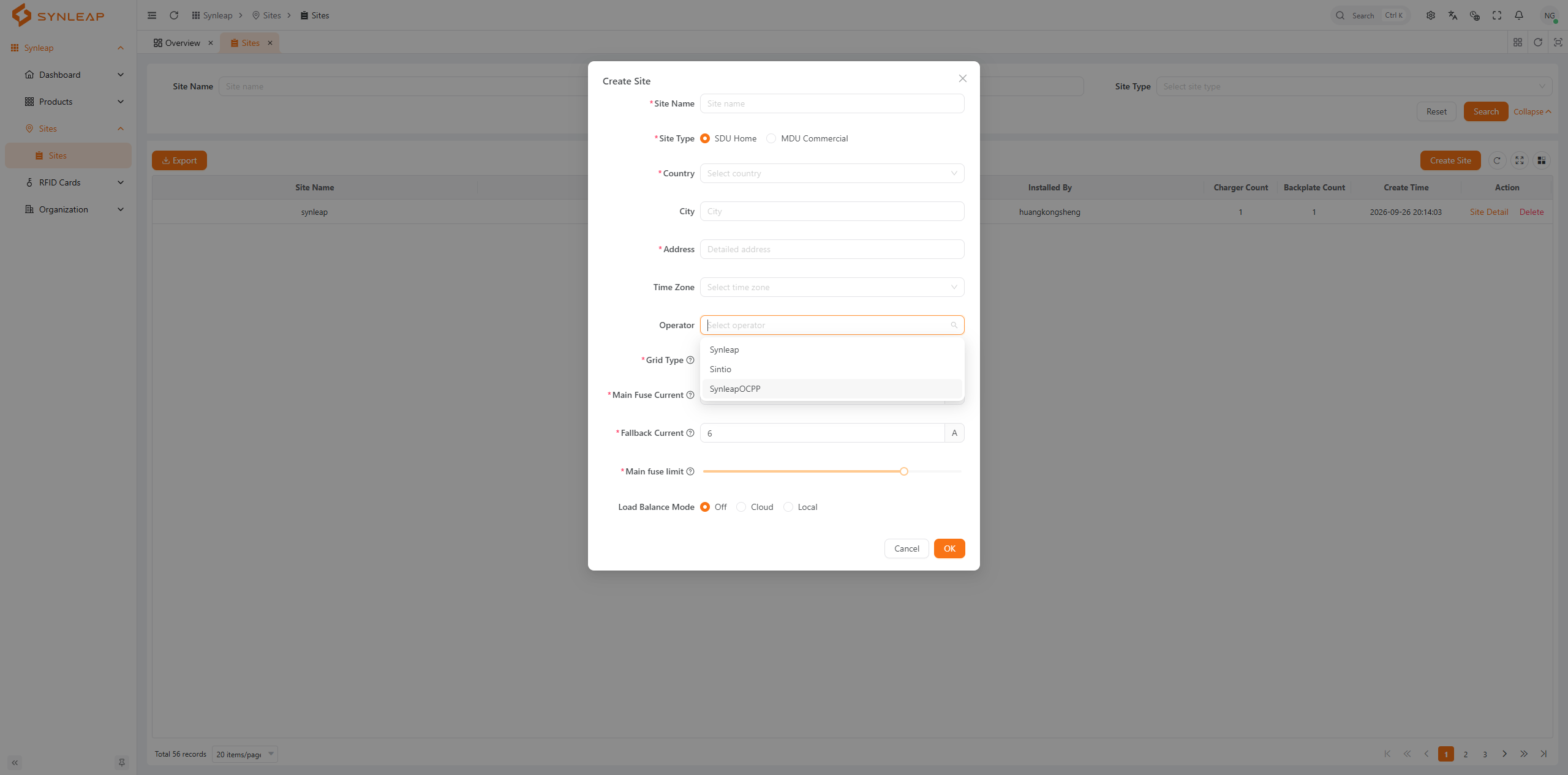
Complete the other required fields and click OK to create the site.
For an existing site
In Sites → Sites, find the site and click Site Detail in its row.
On the Site Detail tab, choose the new Operator, then click Save.